
Keyboard shortcuts
Choose Help → Keyboard Shortcuts or press ⌘/ to see every shortcut. You can also type “shortcuts” in the command palette (⌘K). Press Esc or ⌘/ again to close the list. Space and arrow keys type normally inside text fields.
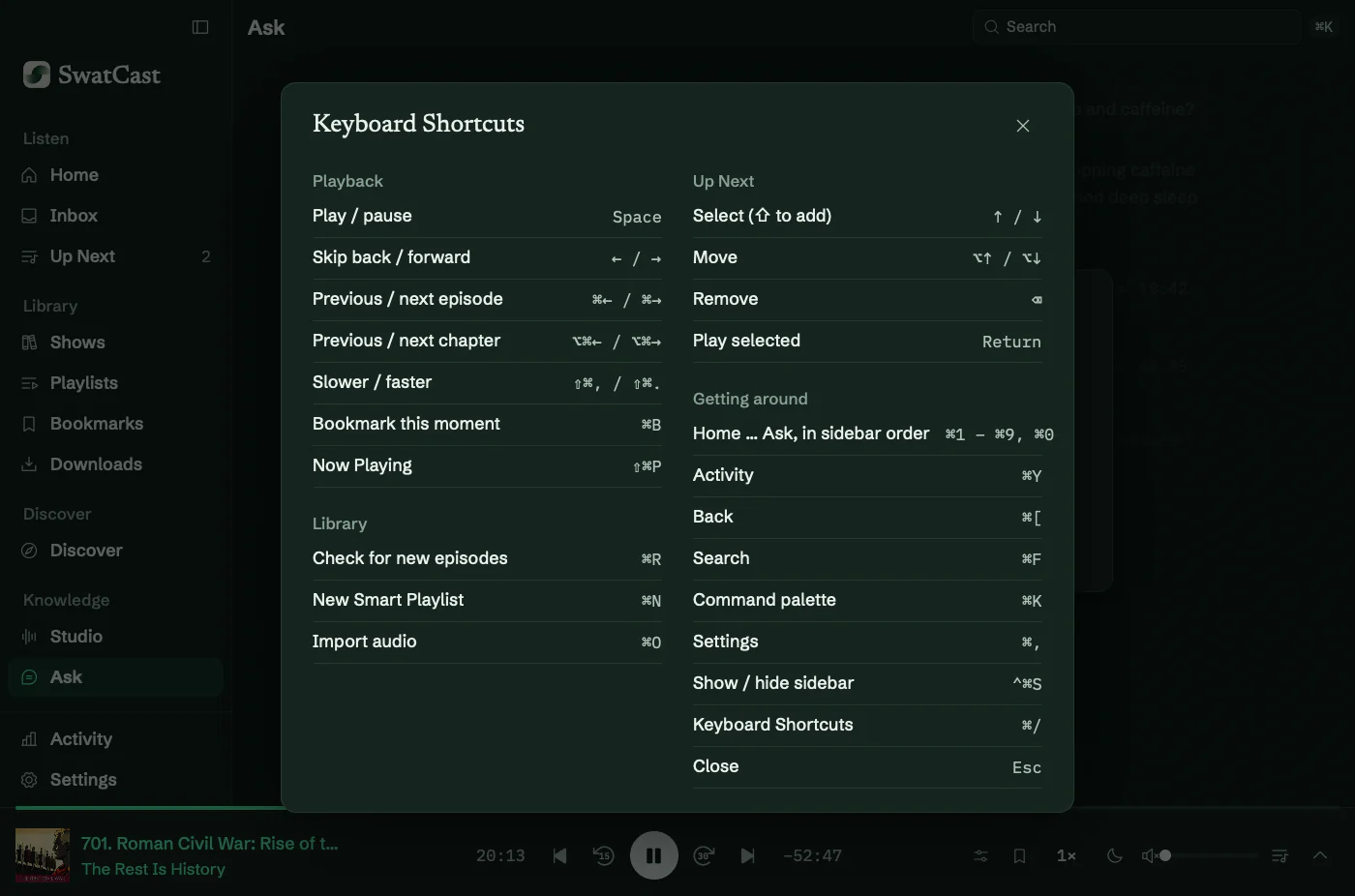
Playback
Section titled “Playback”| Action | Shortcut |
|---|---|
| Play/pause | Space |
| Back/forward by the show’s skip amounts | ← / → |
| Previous/next episode | ⌘← / ⌘→ |
| Previous/next chapter | ⌥⌘← / ⌥⌘→ |
| Slower/faster | ⇧⌘, / ⇧⌘. |
| Bookmark | ⌘B |
| Now Playing | ⇧⌘P |
Library
Section titled “Library”| Action | Shortcut |
|---|---|
| Check new episodes | ⌘R |
| New Smart Playlist | ⌘N |
| Import audio | ⌘O |
Getting around
Section titled “Getting around”| Action | Shortcut |
|---|---|
| Command palette | ⌘K |
| Search | ⌘F |
| Back | ⌘[ |
| Settings | ⌘, |
| Show/hide the sidebar | ⌃⌘S |
| Keyboard shortcuts | ⌘/ |
| Hide/minimize | ⌘H / ⌘M |
| Close a sheet or panel | Esc |
⌘1 through ⌘9, then ⌘0 follow the sidebar from the top: Home, Inbox, Up Next, Shows, Playlists, Bookmarks, Downloads, Discover, Studio and Ask. ⌘Y opens Activity, like History in Safari.
Up Next
Section titled “Up Next”Arrow keys select; Shift extends selection. ⌥↑/⌥↓ reorder, ⌫ removes, and Return plays. See Up Next.
Icon buttons show their name and shortcut on hover.